How to install my trading bot on MT5?
Learn how to install your created bot on MetaTrader 5 (MT5) step by step.
1. Download your bot
After creating your first bot, you can review and download your bot files form the Create and Manage Bots page in your dashboard.
Click the Action button for the bot you want to download. The available MT4 and MT5 versions will be displayed. Select MT5 version to automatically download the file to your system.
After creating your first bot, you can review and download your bot files form the Create and Manage Bots page in your dashboard.
Click the Action button for the bot you want to download. The available MT4 and MT5 versions will be displayed. Select MT5 version to automatically download the file to your system.
2. Copy your MT5 bot file
Then copy your bot file and paste it into the correct folder in your MetaTrader software on your system or VPS.
Then copy your bot file and paste it into the correct folder in your MetaTrader software on your system or VPS.
3. Open your MetaTrader
Click on File → Open Data Folder
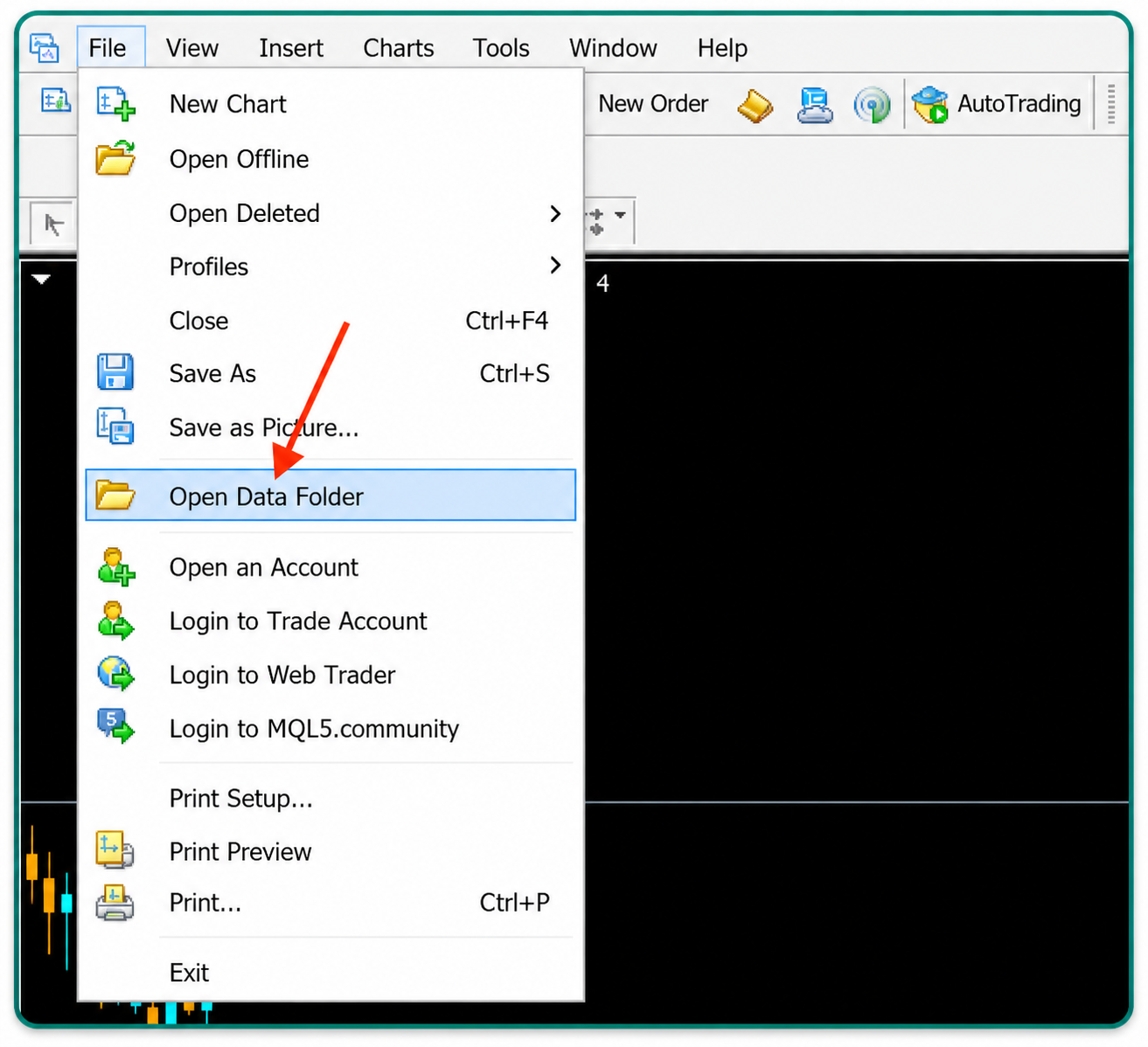
- Then click on the MQL5 folder
Click on File → Open Data Folder
- Then click on the MQL5 folder
- Next, open the Experts folder
Now, paste your copied MT5 bot file here
Then close the folder and go back to your MetaTrader
Click on Tools → Options, then go to the Expert Advisors tab
Enter the correct XAUBOT URL ( https://xaubot.com ), enable the features as shown in the picture, and click OK
Click on View → Navigator
Now, right-click on Expert Advisors on the sidebar, click Refresh, and you should see your bot name appear
Now, from View → Market Watch, choose your preferred pair based on the market your bot is created for — Gold, Forex, Crypto, or Stocks
Then right-click on the pair and click “Chart Window”. The chart for that pair will open on your screen
From the Navigator, double-click on your bot name or drag and drop it onto the chart. Then the bot settings window will pop up
In the first tab, named Dependencies in MT5, click on Allow DLL Imports and enable it.
Go to the Inputs tab and enter the license key connected to this account number in the first parameter called “Input Your License Key”

- Go to the Common tab, click on Allow Algo Trading and enable it
- Now, click on OK and let your bot read your license and settings. Then all elements will appear on the bot screen
Now, your bot is “Live” and ready to explore the market and execute trades based on the settings and algorithm you selected during bot creation.
Related Articles
How to install my trading bot on MT4?
Learn how to install your created bot on MetaTrader 4 (MT4) step by step. 1. Download your bot After creating your first bot, you can review and download your bot files form the Create and Manage Bots page in your dashboard. Click the Action button ...How to download my bot?
Download bot Learn how to download your created bot from the dashboard to use on MetaTrader (MT4 or MT5) 1. After Review your bot One the final step of the bot creation process, your bot is compiled and ready for download Your will be provided with ...How to create my scalp bot?
Scalp bot: Getting started Learn what the Scalp Bot is, how to use it, and when it is best suited for your strategy. This guide also includes the setup process and trading conditions. 1. What is a Scalp bot? The Scalp strategy focuses on capturing ...Available subscription plans
If you're new to XAUBOT, welcome, and thank you for your interest in our software! You can create a free XAUBOT account using just your email address. After registering, you can activate a free trial to explore the platform and test different ...How to enable news filter in XAUBOT?
Learn how the XAUBOT News Filter works, how to enable it, and how it helps avoid high-impact news events to reduce trading risk and improve stability. 1. What is the News Filter? The News Filter is a feature that helps the trading bot avoid opening ...