How to enable news filter in XAUBOT?
Learn how the XAUBOT News Filter works, how to enable it, and how it helps avoid high-impact news events to reduce trading risk and improve stability.
1. What is the News Filter?
The News Filter is a feature that helps the trading bot avoid opening trades during important economic news events, such as:
- Interest rate decisions
- Non-Farm Payrolls (NFP)
- CPI / inflation reports
- GDP announcements
- Federal Reserve speeches
These events can cause very high volatility in gold (XAU/USD) and forex markets.
2. What the News Filter does?
- Pause trading before major news
- Resume trading after the market stabilizes
- Filter medium-impact or high-impact news
- Monitor selected currencies (USD, EUR, GBP, etc.)
This helps reduce risky trades during sudden price spikes.

If the US Federal Reserve interest rate news is scheduled at 10:00 PM:
- XAUBOT may stop opening trades 30 minutes before
- Wait through the announcement
- Continue trading 30 minutes after volatility calms down
3. How to enable the News Filter?
- There are two ways to activate the News Filter on your bot. You can enable or disable this feature during Step 5 of bot creation, where the option is available.
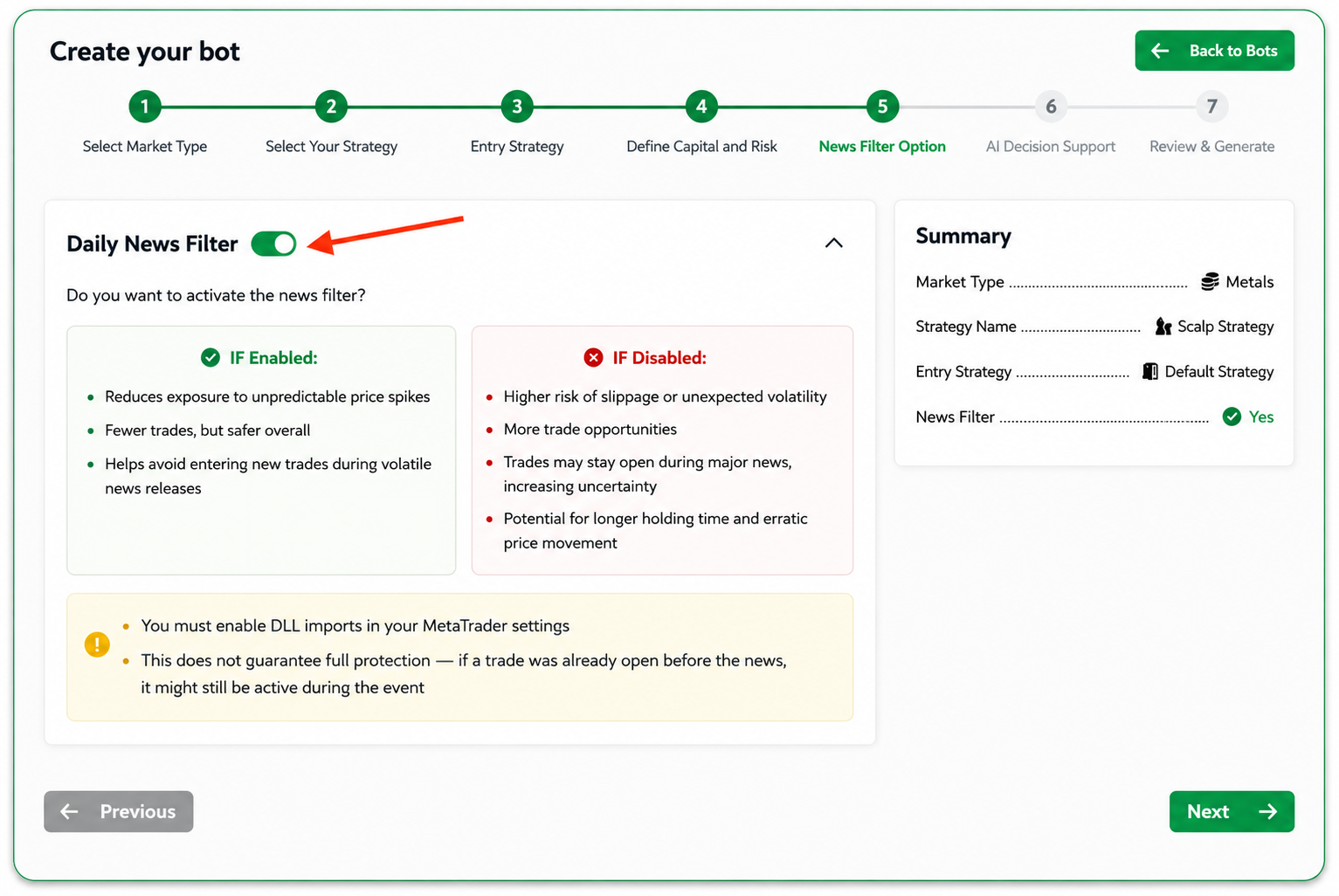
 If you forgot to activate it during bot creation, you can click your bot name in the top-right corner and open the bot settings. Then scroll down to the "Calendar Settings" section and change the News parameter from "false" to "true".
- In the bot settings → Common tab → check Allow DLL imports
- In Tools → Options → Expert Advisors tab → check Allow DLL imports
4. Settings available
Inside XAUBOT Inputs / News Time Settings you can configure:
Inside XAUBOT Inputs / News Time Settings you can configure:
Currency list (USD, EUR, GBP, etc.) — Write your preferred currencies whose news you want the bot to consider, separated by commas
Minutes before high news to stop and resume trading
Minutes before medium news to stop and resume trading
Final summary
The XAUBOT News Filter helps protect your trading by avoiding high-impact economic news events that can cause strong market volatility. When enabled, the bot pauses trading before major announcements and resumes once the market stabilizes. You can activate it during bot creation or later in the bot settings under News Time Settings. It also requires DLL imports to be enabled in MetaTrader.
Related Articles
What is the XAUBOT license key?
Learn what is the XAUBOT license key and where you can find it to use in your bot settings. 1. What is a License Key? A license key is a unique code used to activate and verify your software or trading bot . It confirms that you have a valid ...How to create my scalp bot?
Scalp bot: Getting started Learn what the Scalp Bot is, how to use it, and when it is best suited for your strategy. This guide also includes the setup process and trading conditions. 1. What is a Scalp bot? The Scalp strategy focuses on capturing ...How to buy an XAUBOT subscription?
Learn how to activate your 15-day trial or purchase a premium subscription. Includes payment methods. New to XAUBOT? You’ll be offered a 15-day trial plan when signing up The trial begins once you select this subscription in your dashboard No charges ...How to update my account numbers in XAUBOT?
Learn how to update your broker account numbers connected to your license key and use your license key on another broker account. 1. Open Subscriptions Accessing the subscriptions page Go to the “Subscriptions” page using the left-hand menu in your ...How to install my trading bot on MT5?
Learn how to install your created bot on MetaTrader 5 (MT5) step by step. 1. Download your bot After creating your first bot, you can review and download your bot files form the Create and Manage Bots page in your dashboard. Click the Action button ...