How to create my scalp bot?
Scalp bot: Getting started
Learn what the Scalp Bot is, how to use it, and when it is best suited for your strategy. This guide also includes the setup process and trading conditions.
1. What is a Scalp bot?
The Scalp strategy focuses on capturing small price movements quickly, often within minutes or just a few candles.
The bot enters trades with a tight take-profit level and a small stop-loss level. This approach aims for high-frequency, low-risk trades that depend on fast market execution and short-term opportunities
.
2. When should I use a Scalp bot?
Use scalp bot if:
- You need fast trades and want to capture small returns quickly
- You have a broker account with low spread and fast execution
- You want active trading with more frequent trades rather than waiting for setups to be confirmed

Tip: Multi-level bots are preferred by advanced traders because they generate more consistent returns in volatile, sideways, and range markets. Scalp bots can still be profitable, but their returns are usually less consistent from month to month.
3. How to create a Scalp bot?
Accessing the create and manage bots page
Go to the “Create and Manage Bots” page using the left-hand menu in your dashboard
- Once you are on this page, click the “Create New Bot” button to start creating your bot

Choose your trading market
Go to the “Create and Manage Bots” page using the left-hand menu in your dashboard
Once you are on this page, click the “Create New Bot” button to start creating your bot
- Choose the market you want your bot to trade in from the available options then click "Next" button to continue to the following page
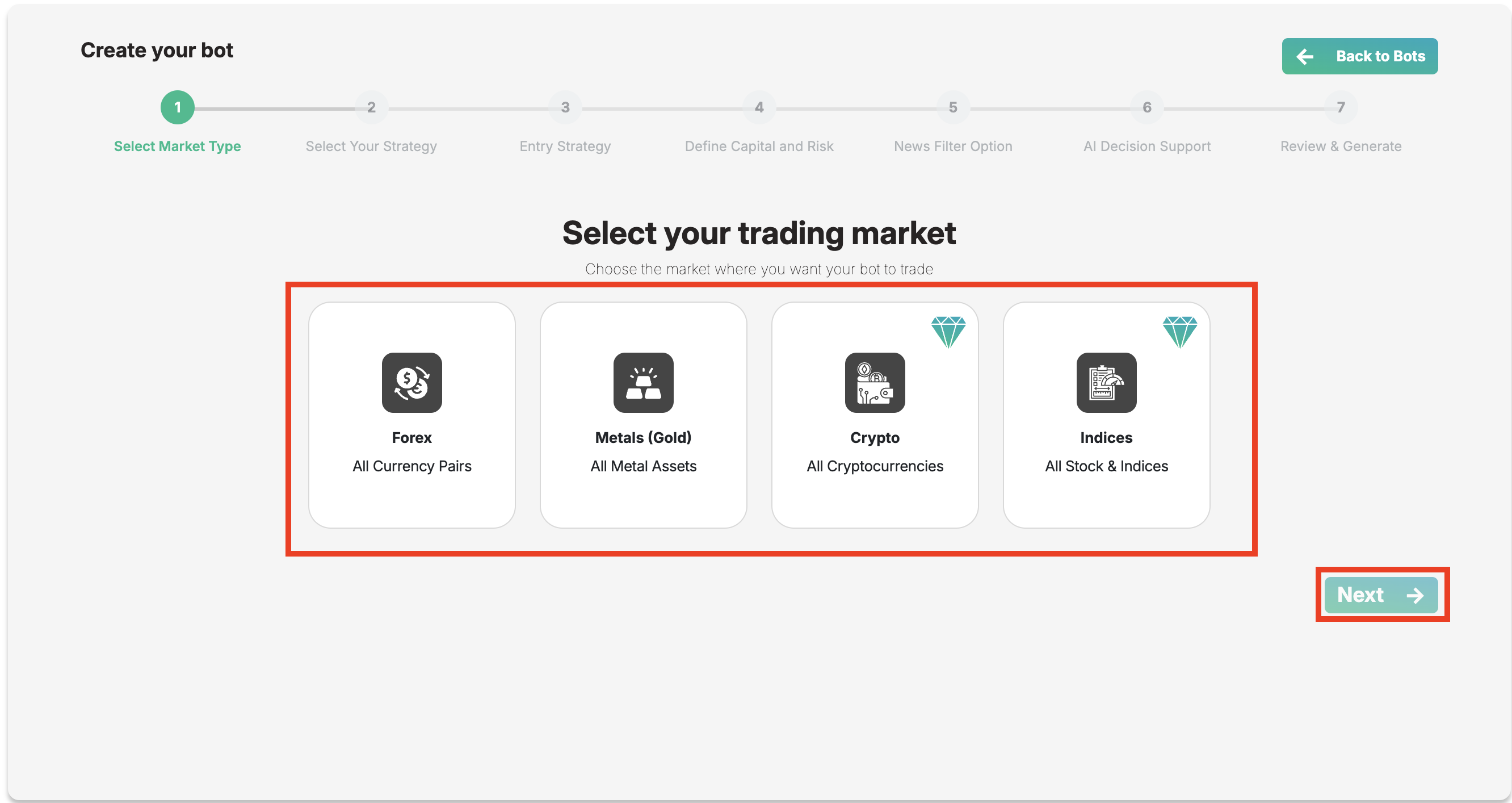
Choose the market you want your bot to trade in from the available options then click "Next" button to continue to the following page
Choose your trading strategy
- Select the scalp strategy you prefer. This strategy is designed to capture small price movements through frequent, quick trades
Choose your entry strategy
- XAUBOT offer the top 10 entry trading strategies, allowing you to identify opportunities and automate your trades with precision
- Every strategy includes clear explanations to help you understand how it works and when it performs best
- Choose the entry strategy you prefer to automate your trading from the available options
 Only premium users can explore and select from all available strategies, each with detailed descriptions and verified performance results directly on the dashboard. Simply review the strategies and choose the one that best matches your trading style and market conditions.
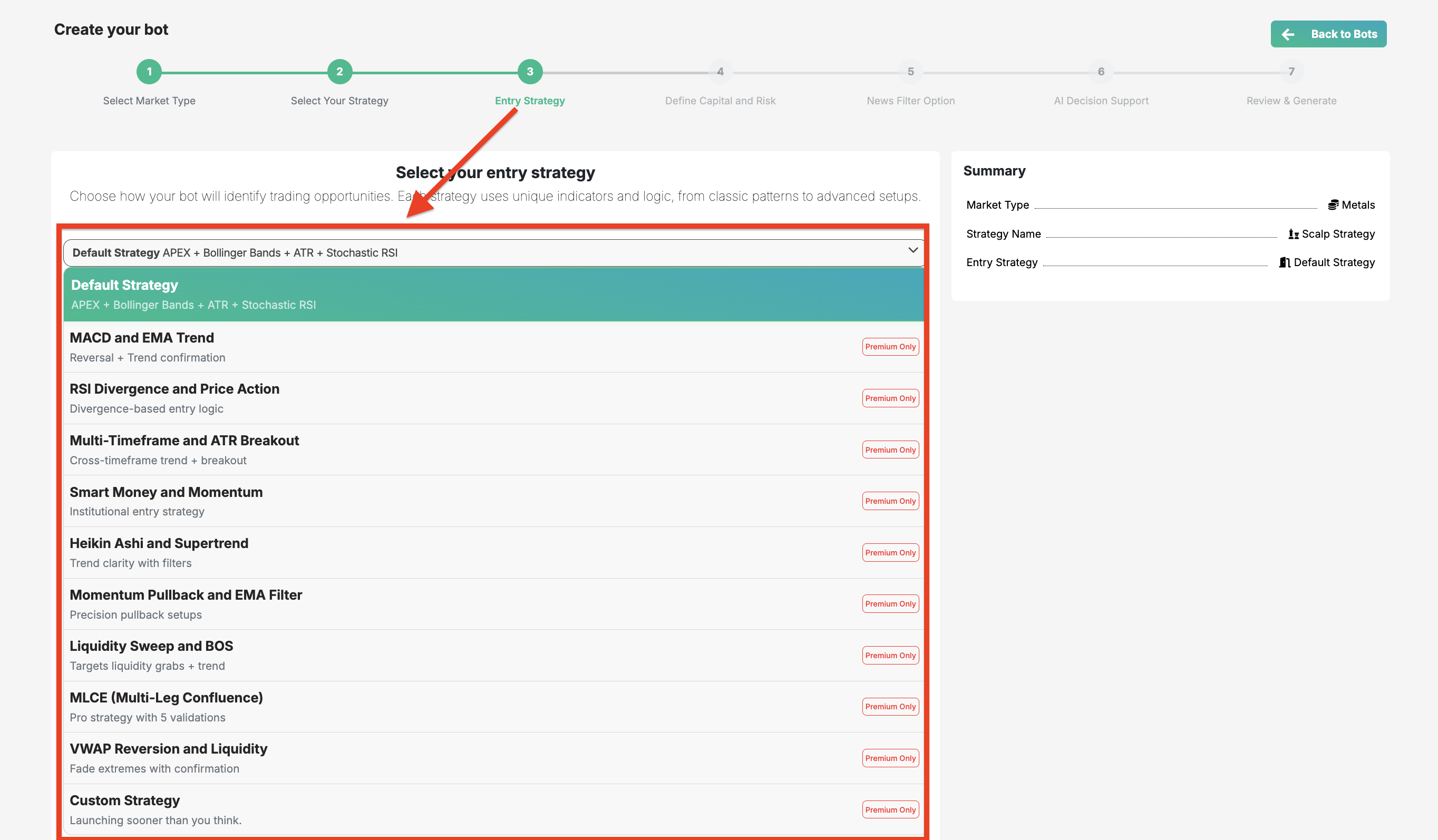
Every strategy includes clear explanations to help you understand how it works and when it performs best
Choose the entry strategy you prefer to automate your trading from the available options
Only premium users can explore and select from all available strategies, each with detailed descriptions and verified performance results directly on the dashboard. Simply review the strategies and choose the one that best matches your trading style and market conditions.
Configure main settings
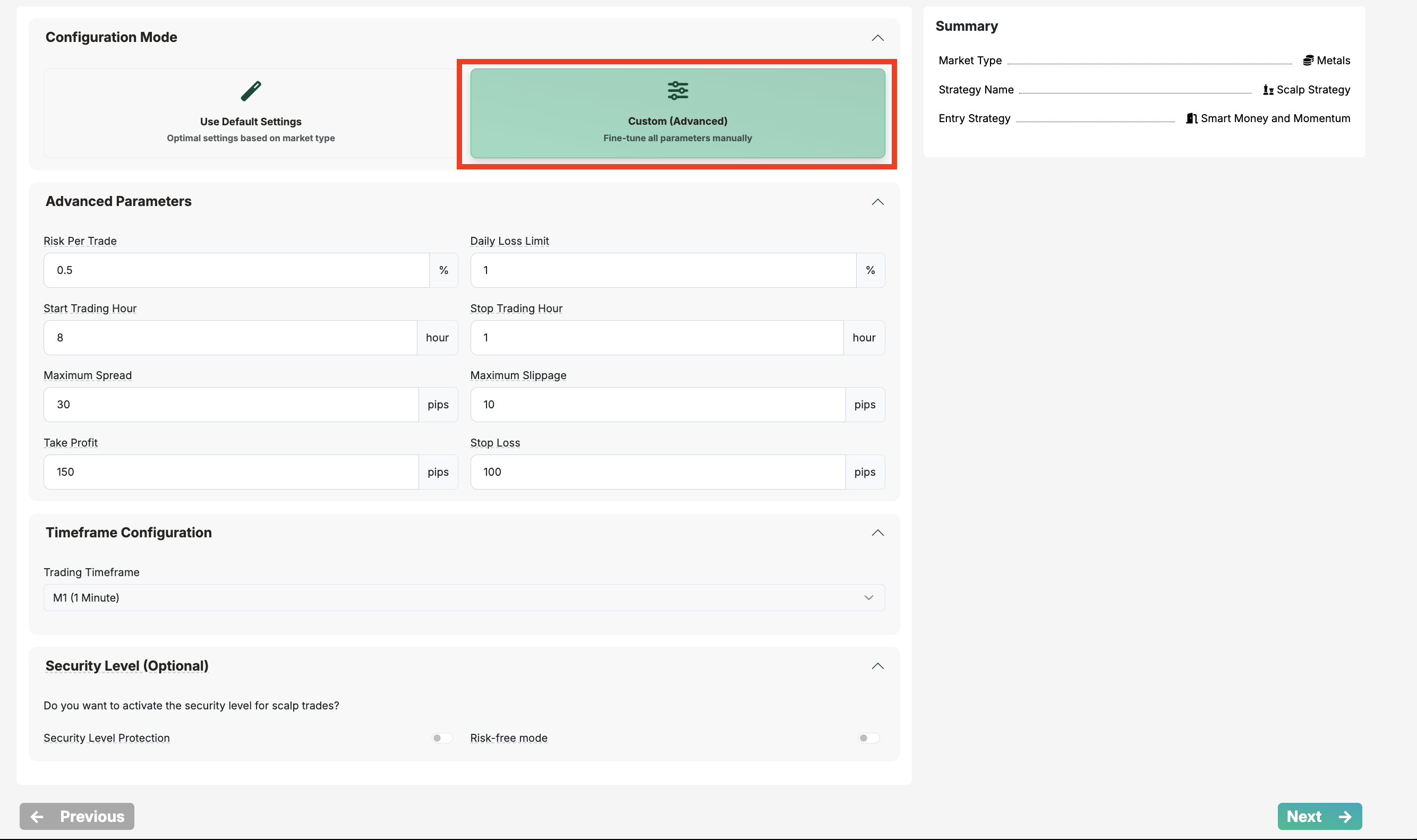
- In this step, you have two options to continue: Default Settings or Custom Settings
- If you choose Default Settings, the system will automatically apply the optimal configuration based on the market type you selected when creating your bot. You can still modify these settings later in your bot configuration after the bot has been created
- If you are familiar with the parameters and want more control, you can choose Custom Settings and adjust any parameter according to your preferred values
 Important: After selecting Custom settings and modifying any parameters, it is recommended to run a backtest on your broker. This allows you to review the results of the parameters you configured and ensure everything is working properly while minimizing potential risk.
News filter feature
Important: After selecting Custom settings and modifying any parameters, it is recommended to run a backtest on your broker. This allows you to review the results of the parameters you configured and ensure everything is working properly while minimizing potential risk.
News filter feature
- In you enable the News Filter, your bot will avoid opening trades 60 minutes before high- and medium-impact news event
 You can also modify this time period in your bot settings after installing the bot on your MetaTrader, allowing you to adjust the minutes before and after news events when trading is restricted.
 AI decision feature
- In you enable the AI decision, your bot will scan each trading pair you selected using fundamental and sentiment analysis. It aligns trades with real-time market sentiment through advanced AI analysis using the ChatGPT API, along with data from Reddit, and Twitter trend tracking
- The AI decision, whether the market trend is downtrend, uptrend, or range. When a trade signal appears, the bot checks if the signal aligns with the identified market trend. If the signal matches the trend, the trade will be executed. If it does not match the trend, the bot will skip that trade
With AI decision enabled, your trades may be more accurate, but you may see fewer trades compared to running your bot without AI filtering. Whenever you want, you can enable or disable this feature in your bot settings.
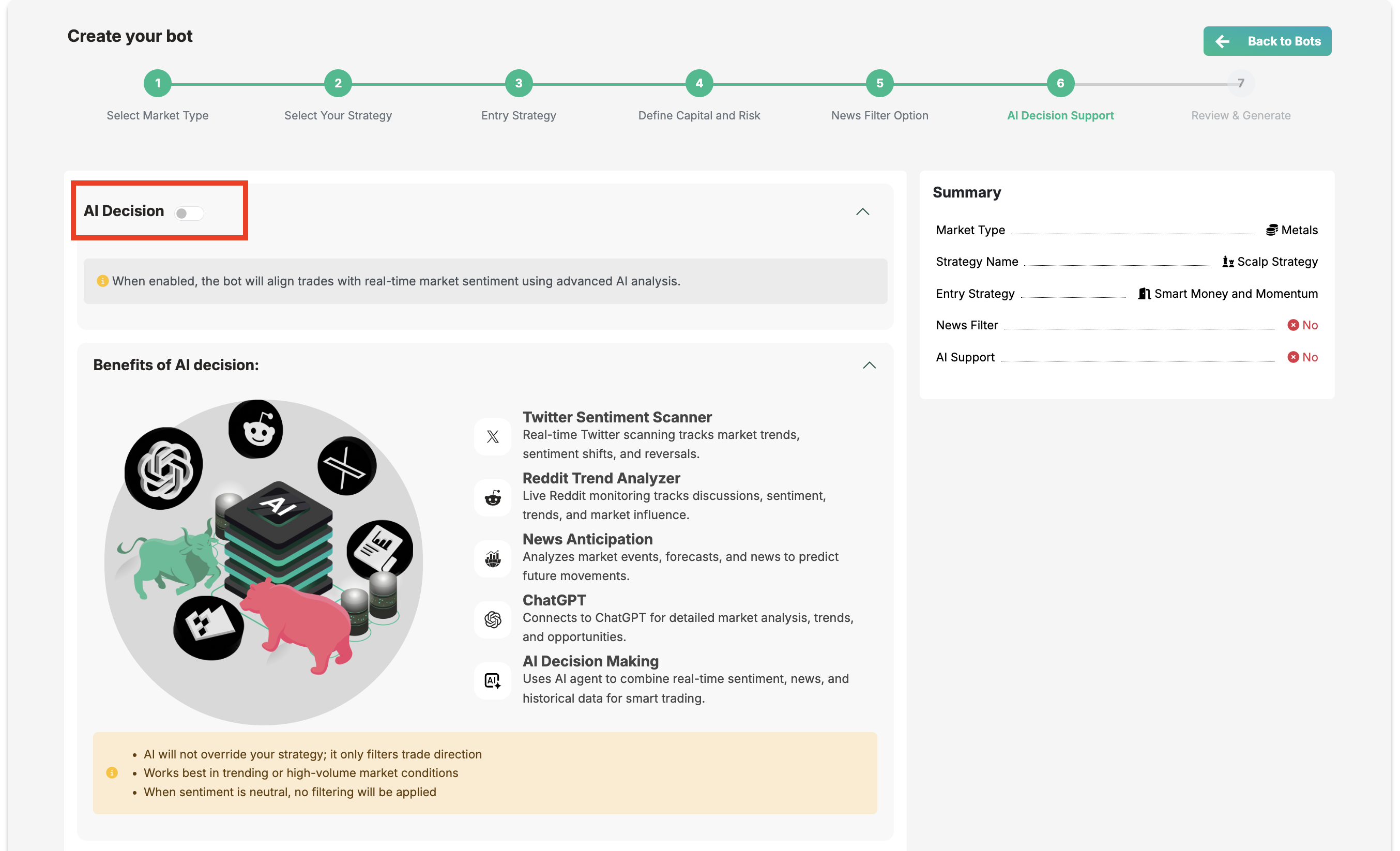
With AI decision enabled, your trades may be more accurate, but you may see fewer trades compared to running your bot without AI filtering. Whenever you want, you can enable or disable this feature in your bot settings.
Review and create the bot
- In this step, you can review your bot's behavior based on the current settings you have configured
- Once satisfied with the configuration, click Compile to generate your bot file for MT4 and MT4
Bot is ready to download
- Congratulations! Your scalp bot has been successfully set up and compiled. It is now ready to run 24/7, automating your trades and helping optimize your trading opportunities
For further assistance, check out the helpful articles and videos available in the XAUBOT Help Center and on YouTube, or contact the support team.
Happy trading and enjoy automated trading with XAUBOT!
For further assistance, check out the helpful articles and videos available in the XAUBOT Help Center and on YouTube, or contact the support team.Happy trading and enjoy automated trading with XAUBOT!
Related Articles
How to download my bot?
Download bot Learn how to download your created bot from the dashboard to use on MetaTrader (MT4 or MT5) 1. After Review your bot One the final step of the bot creation process, your bot is compiled and ready for download Your will be provided with ...How to install my trading bot on MT5?
Learn how to install your created bot on MetaTrader 5 (MT5) step by step. 1. Download your bot After creating your first bot, you can review and download your bot files form the Create and Manage Bots page in your dashboard. Click the Action button ...How to install my trading bot on MT4?
Learn how to install your created bot on MetaTrader 4 (MT4) step by step. 1. Download your bot After creating your first bot, you can review and download your bot files form the Create and Manage Bots page in your dashboard. Click the Action button ...Available subscription plans
If you're new to XAUBOT, welcome, and thank you for your interest in our software! You can create a free XAUBOT account using just your email address. After registering, you can activate a free trial to explore the platform and test different ...How to enable news filter in XAUBOT?
Learn how the XAUBOT News Filter works, how to enable it, and how it helps avoid high-impact news events to reduce trading risk and improve stability. 1. What is the News Filter? The News Filter is a feature that helps the trading bot avoid opening ...